How to Turn a Still Image Into a Short Video With AI
Creating video content from a single still photograph used to require complex animation software, a deep understanding of motion graphics, and hours of manual editing. That workflow has changed dramatically in the past few years. A new category of tools now lets anyone upload a picture and receive a short video that adds realistic movement, consistent scene structure, and even synchronized sound. The process is often called "image to video" generation, and it is one of the most practical uses of modern AI for content creators, marketers, and storytellers.
At its core, the technology works by analyzing a static image and predicting how objects, textures, and lighting would behave if the scene were alive. The AI learns from thousands of hours of real video footage to understand motion cues: how hair flows in wind, how water ripples, how a person's expression shifts subtly. When you provide a starting image, the system generates additional frames that follow those learned patterns, producing a short clip that feels natural rather than jerky or artificial. The result is a video that preserves the original style of the photo while adding temporal consistency across every frame.
What Makes the Output Look Realistic
Two factors determine whether the final video looks believable: motion transfer and style preservation. Motion transfer refers to how well the AI applies movement to the right parts of the image. For example, if you upload a portrait, the system should animate the subject's facial muscles and hair without distorting the background or introducing unnatural artifacts. Good motion transfer keeps the subject recognizable throughout the clip.
Style preservation is equally important. The generated frames must match the color palette, lighting, and texture of the original image. If the starting photo has a warm sunset glow, every frame of the video should share that same atmosphere. When style preservation fails, the video can look like a series of unrelated stills stitched together rather than a coherent scene. The best tools balance both elements, producing short video output that feels like a natural extension of the original picture.
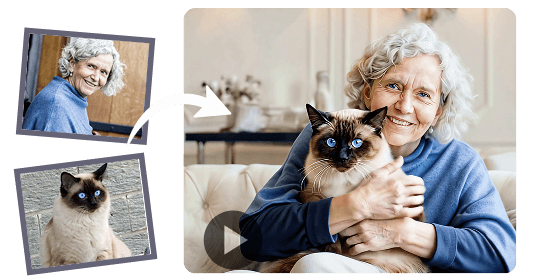
One of the key technical challenges is maintaining temporal consistency. That means the movement should be smooth from one frame to the next, with no sudden jumps or flickering. Early AI video generators often struggled with this, causing objects to warp or disappear between frames. Modern systems use advanced neural network architectures that track features across multiple frames, ensuring that a person's hand, for instance, moves along a believable path rather than teleporting to a new position.
Practical Uses for Short AI-Generated Videos
The ability to turn a single image into a brief animated clip opens up many practical applications. Social media content creators can take a product shot and turn it into an engaging post that catches the viewer's eye. E-commerce sites can show a static product image with subtle motion, such as a jacket swaying gently or a drink fizzing, to give customers a better sense of the item. Event photographers can animate group photos to capture the energy of a moment, adding a few seconds of natural movement to an otherwise static memory.
For marketers, short animated clips can increase click-through rates and time spent on a page. A static banner ad that turns into a looping video with realistic motion is more likely to draw attention. The technology also helps in prototyping: a designer can sketch a concept, run it through an image-to-video tool, and quickly show stakeholders how the idea might look in motion without hiring an animator. The speed of this workflow is a major advantage when iterating on creative ideas.
Cinematic audio is sometimes added by the same tools, generating background sounds that match the scene. A video of a forest path might include birdsong and rustling leaves, while a clip of a busy street could feature car horns and footsteps. The audio is synthesized based on the visual content, so it aligns with the motion on screen. This addition makes the output feel complete and ready to share without extra editing.
What to Look For in a Tool
When evaluating an image-to-video generator, consider how well it handles different types of input. Some tools excel with human faces and portraits, while others work better with landscapes or abstract art. The quality of motion transfer should be your first check: does the movement look natural, or does it seem robotic and repetitive? Watch for artifacts like flickering edges or objects that morph unexpectedly.
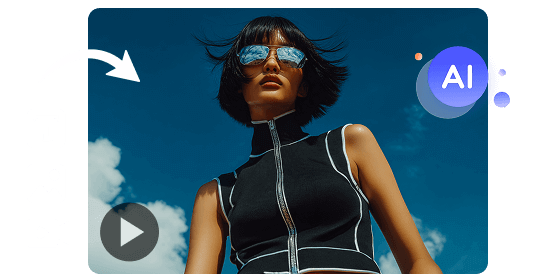
Another factor is the length of the output. Most tools produce clips lasting a few seconds, which is enough for social media or short promotional material. Longer videos require more frames and increase the chance of inconsistency. If you need extended footage, you may need to generate multiple clips and edit them together manually. The best tools also offer control over the type of motion. For instance, you might want a gentle breeze effect for a landscape or a more energetic animation for a product demo. Having adjustable parameters helps you match the output to your creative vision.
Style preservation matters too. Upload a test image with strong colors or a distinctive artistic style, such as an oil painting or a pencil sketch. The generated video should retain that aesthetic rather than flattening it into a generic photographic look. Some tools even allow you to provide a reference image for the style, which is useful for branding consistency.
Common Pitfalls and How to Avoid Them
One frequent frustration is the "uncanny valley" effect, where the motion is almost realistic but something feels slightly off. This often happens with human faces, especially around the eyes and mouth. The AI may produce micro-expressions that look unnatural or fail to sync with the rest of the face. To reduce this, start with a high-quality image that has good lighting and clear features. Blurry or low-contrast photos give the AI less information to work with, increasing the chance of errors.
Another issue is background instability. The AI might animate the background when it should remain static, creating a distracting wobble. Good tools separate the subject from the background and apply motion only where it makes sense. If your tool does not handle this well, you can pre-process the image by removing or simplifying the background before uploading.
Finally, be aware of the limitations in resolution. Many generators output video at a lower resolution than the original image, which can reduce detail. If you plan to use the clip on a large screen or in a professional presentation, check the export settings. Some services offer higher-resolution output for a fee, while others stick to standard social media sizes.
Looking Ahead
The field of video generation from still images is advancing quickly. As models improve, we can expect longer clips, better handling of complex scenes, and more intuitive controls. Right now, the technology is best suited for short, focused projects where a single image can be transformed into a few seconds of engaging motion. The phrase "image to video" is likely to become as common as "photo editing" once the tools reach a level of reliability that matches user expectations.
For anyone working with visual content, experimenting with this approach is worth the time. The barrier to entry is low: upload a picture, wait a few seconds, and see what the AI produces. The results can be surprising, sometimes delightful, and occasionally a bit strange. That is part of the learning curve. By understanding how motion transfer, temporal consistency, and style preservation work, you can make better choices about which tool to use and how to prepare your images for the best outcome.